








Zoom

Zoom
Collaboration tools
Overview
Zoom is a video conferencing platform used by organizations and educational institutions for meetings, classes, webinars, and real-time collaboration. Zoom includes cloud recording capabilities, but recordings are stored per user and expire based on the subscription plan—without the governance, search, or content management tools that organizations need to make recorded meetings useful over time.
Panopto’s integration with Zoom turns meeting recordings into a governed, searchable knowledge resource. When a Zoom meeting is recorded, Panopto imports it automatically—processing, captioning, and indexing it for search within the organization’s secure video library. Recordings can be mapped to specific folders, including LMS course folders for institutions using Zoom alongside Canvas or other supported platforms via Zoom LTI Pro.
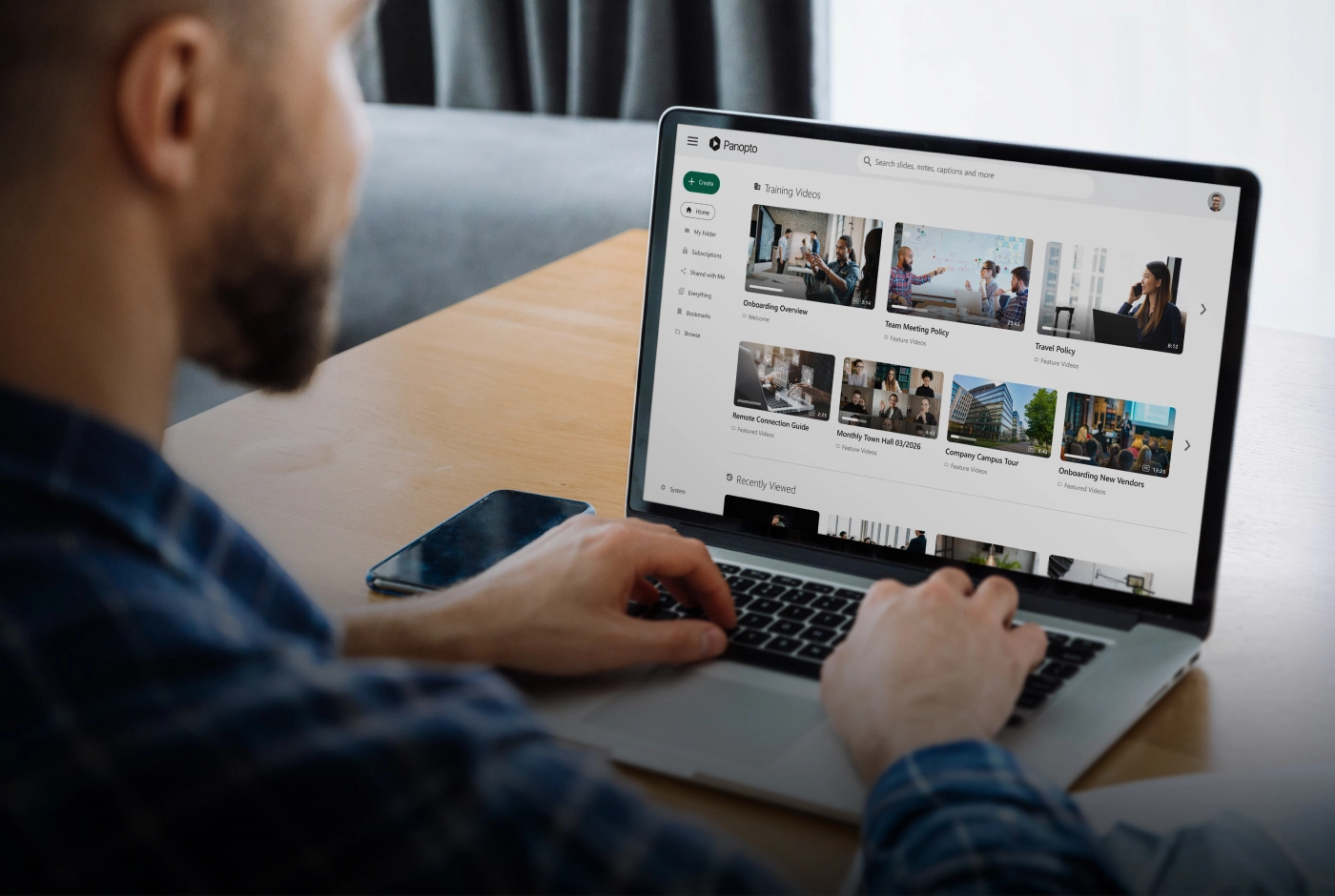
Once in Panopto, recordings are searchable at the word level across every spoken word and every word shown on screen. Viewers toggle between speaker video, screen shares, slides, and gallery view in Panopto’s multi-source player. Editors trim, cut, and update recordings in the browser without additional software. Administrators apply retention policies, access controls, and audit logging across the full library of Zoom recordings alongside all other organizational video.
Benefits
- Zoom recordings import to Panopto automatically—no manual upload or filing required
- Recordings are captioned, indexed for search, and organized in the Panopto library
- Search inside every spoken word and on-screen element across all recordings
- Viewers toggle between speaker, screen share, slides, and gallery view in the multi-source player
- Recordings are managed under Panopto’s retention policies rather than Zoom’s storage limits
- Audit logs, access controls, and viewer tracking support compliance and governance requirements
- Zoom recordings can be mapped to LMS course folders via Zoom LTI Pro
- Browser-based editing—trim, cut, and update recordings without additional software
Features
- Automatic Zoom recording import
- Folder mapping for Zoom recordings
- Zoom LTI Pro folder mapping for LMS courses
- Configurable import layouts for Zoom recordings
- Multi-source video player—speaker, screen share, slides, gallery view
- Intelligent search across all spoken words and on-screen content
- Smart chapters and visual index
- Browser-based video editing—no software required
- Automated captions and transcripts
- Role-based access controls and SSO
- Audit logs and viewer tracking
- Retention policies and content governance
- Webcasting with Panopto via Zoom
- Viewer analytics
Support and documentation
Setup and configuration
- How to set up a Zoom integration
- How to configure folder mapping using Zoom LTI Pro for LMS
- How to use Zoom LTI Pro with multiple Canvas servers
- How to use Zoom diagnostics
Using the integration
Frequently asked questions
How does the Panopto Zoom integration work?
When a Zoom meeting is recorded to the Zoom cloud, Panopto imports the recording automatically and publishes it to the designated folder in the Panopto library—where it is processed, captioned, and indexed for search. No manual upload is required; the recording moves from Zoom to Panopto as part of the workflow.
Administrators configure folder mapping to control where different types of Zoom recordings are filed in Panopto—by user, team, or LMS course. Once in Panopto, recordings are governed by the same access controls, retention policies, and audit logging that apply to all other content in the library.
What happens to Zoom recordings after they are imported into Panopto?
Once imported, Zoom recordings are captioned and transcribed automatically, indexed for search at the word level, and organized in the designated Panopto folder. Recordings are set to private by default, with access controlled by the permissions on the folder they’re filed in.
Recordings are no longer subject to Zoom’s storage limits or expiration policies once they are in Panopto. They persist under Panopto’s retention policies for as long as those policies specify, and they are accessible on demand from any device to viewers with appropriate permissions.
Can Panopto import Zoom recordings into LMS course folders?
Yes. For institutions using Zoom LTI Pro alongside an LMS such as Canvas, Panopto supports folder mapping that routes Zoom recordings from specific courses directly into the corresponding Panopto LMS course folder. This means students can access Zoom class recordings inside the LMS course alongside other course video—without the recording needing to be manually shared or re-uploaded.
Setup documentation for configuring folder mapping with Zoom LTI Pro is linked in the support section on this page. A separate guide covers configuration for institutions using Zoom LTI Pro with multiple Canvas servers.
How does Panopto handle the multi-source video from Zoom recordings?
Panopto’s multi-source video player lets viewers toggle between the available video streams captured in a Zoom recording—speaker video, screen shares, slides, and gallery view—rather than being locked into a single fixed layout. Viewers choose which stream to focus on and switch between them at any point during playback.
Zoom recording import layouts are configurable, so administrators can set how recordings are imported and displayed by default. The support documentation on import layouts is linked on this page.
Does the Panopto Zoom integration support webcasting?
Yes. Panopto supports webcasting with Zoom, allowing organizations to stream live events to audiences through the Panopto webcasting workflow while using Zoom as part of the production setup. The recording is captured and published to Panopto when the webcast ends.
Setup guidance for webcasting with Zoom and Panopto is linked in the support documentation on this page.
How are Zoom recordings governed and secured in Panopto?
All Zoom recordings imported into Panopto are managed under the same governance framework as the rest of the video library—role-based access controls, SSO authentication, folder-level permissions, and configurable retention policies. Audit logs track viewing at the user level, and viewer analytics show who watched which recordings, for how long, and where they dropped off.
For organizations where Zoom recordings contain sensitive business information, this governance layer provides controls that Zoom’s native sharing tools do not. Viewer tracking and exportable completion data support the documentation requirements that compliance and IT teams need.
Category
Collaboration tools